
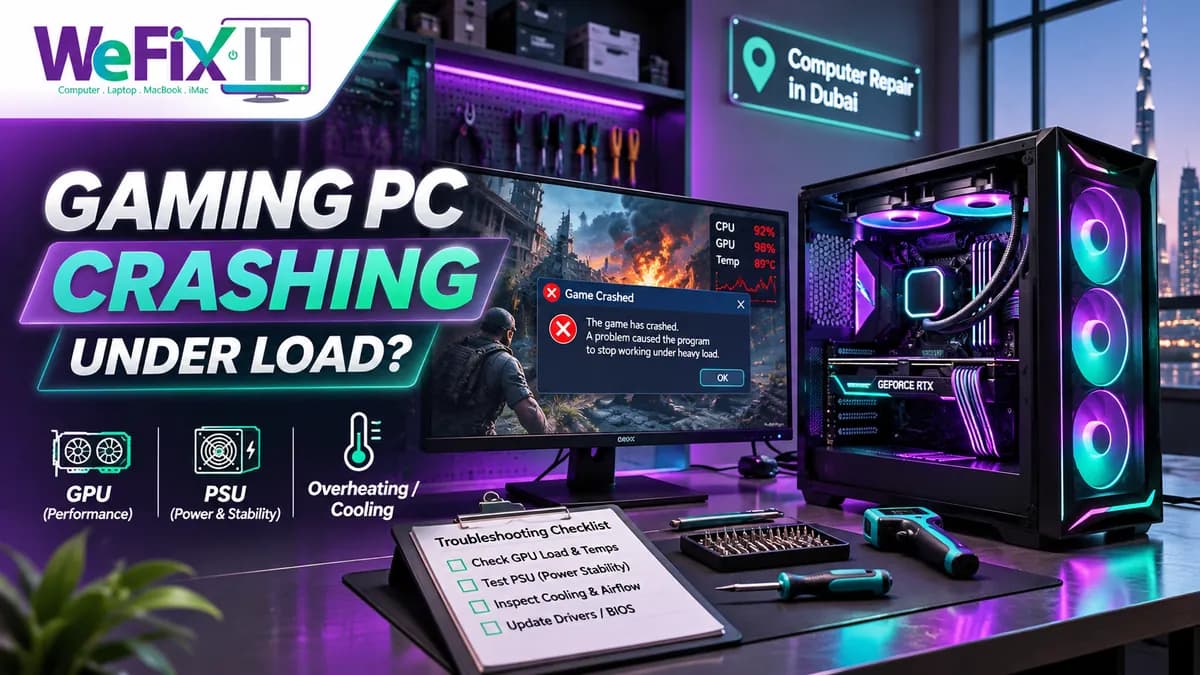
Your gaming desktop works on the Windows desktop, but shuts down, restarts or freezes five minutes into a demanding game. Sometimes the fans get loud first. Other times the picture freezes and the audio continues, or the computer suddenly goes black.
For gamers and content creators in Dubai, these faults can interrupt gaming, rendering and work. A crash during gameplay does not automatically mean the graphics card is broken. The cause may be a graphics driver, overheated processor, unstable memory, power delivery or an application problem. The safest and most economical approach is to identify the exact failure pattern before buying replacement hardware.
First: which type of crash are you seeing?
The game closes, but Windows stays running. This can be an application, driver, graphics or memory stability issue. Capture the exact message and whether it happens in only one game.
The whole PC freezes. If the picture and keyboard stop responding, system-wide stability—such as GPU, CPU, RAM, drivers or power delivery—may need assessment.
The PC suddenly shuts off or restarts. Potential causes include power supply protection, overheating or other electrical faults. A power event alone doesn't prove the PSU is faulty.
The screen goes black, but fans remain on. Video-output, display cable, graphics drivers or hardware faults are possible. The computer might still be running.
You get a blue screen (BSOD). Record the stop code and whether it follows a particular update or program. The code can be useful evidence, but is not always the exact root cause.
Avoid running the same crashing workload over and over before ruling out heat, fan or electrical problems.
Six common causes of gaming-PC instability
1. GPU driver or game software
A graphics driver that conflicts with a game update can cause freezing, error messages or application crashes. If problems occur in one game only, check the game's official known-issues page and verify that game's files before replacing any hardware. Use drivers from the GPU manufacturer or PC maker, not unofficial utilities.
NVIDIA's official crash troubleshooting guidance distinguishes application-related problems from possible system instability.
2. CPU or GPU cooling problems
Dust, clogged filters, a failing fan, poor case airflow or a cooling-pump issue can lead to high temperatures. Sudden performance drops, very loud fans or shutdowns during demanding applications are possible symptoms.
However, high fan speed alone does not prove overheating; fans often respond normally to load. Appropriate temperature ranges depend on the actual processor and graphics card model. Do not compare one arbitrary temperature limit across every PC.
3. Power-supply or electrical issues
A power supply that cannot deliver stable output under certain loads can lead to restarts or shutdowns, but faulty cables, unstable motherboard power circuits or other components can produce similar symptoms.
Never open a computer power-supply unit. Dangerous energy may remain stored inside even when unplugged. Power-supply inspection or replacement should be performed by a qualified technician.
4. RAM, XMP/EXPO or overclock instability
Memory compatibility, BIOS settings, unstable overclocking and undervolting can create intermittent crashes under heavy load. Factory-rated parts may still be unstable with a particular motherboard configuration. If instability began after a tuning change, note the exact change for the technician rather than changing numerous parameters at once.
5. GPU, motherboard or PCIe connection faults
The GPU, its connectors, the motherboard slot or related power components may have a fault. Display artefacts, repeated driver resets or failures across many applications make hardware investigation more relevant, but these symptoms remain non-specific.
6. Storage or operating-system problems
Insufficient free storage, corrupted game files, failing drives or Windows problems can affect loading, updates and stability. A storage problem may affect one game more than others, especially where large game files are being streamed. If a drive contains important files, back up safely before performing any destructive repair action.
Safe checks before bringing the PC for diagnosis
1. Save important data first. If the system still operates normally for light tasks, make a backup. Don't run prolonged tests if the machine is unstable or potentially damaged.
2. Note exactly when it crashes. Does it happen only in one game, during video rendering, after a Windows update, or on all demanding applications? Write down any error code.
3. Check visible airflow without opening dangerous components. Make sure the case vents aren't obstructed and the computer is on a stable surface with clearance around it. Avoid running a tower in an enclosed cabinet with restricted ventilation.
4. Listen and look for warning signs. If a fan has stopped, liquid is leaking from a cooling loop, or you notice burning smell, smoke or abnormal electrical noise, turn the PC off and disconnect it safely. Do not attempt a stress test.
5. Review recent software changes. Note new drivers, game patches, antivirus software, BIOS updates or tuning settings. If only one game fails, official game-file verification may be a reasonable first check.
6. Avoid making multiple simultaneous changes. Replacing a GPU, reflashing firmware, removing RAM and resetting BIOS all at once makes it much harder to identify the original problem. Keep a list of anything already tried.
For gaming systems under warranty, consult the manufacturer before removing components or opening the case.
Why a stress test isn't always the right first move
Stress-testing tools can be useful in controlled service diagnostics, but they place substantial load on the CPU, GPU and power system. If you suspect overheating, a leaking liquid cooler, damaged cables or PSU instability, repeating a heavy load can worsen the problem.
A technician may instead first inspect cooling, connectors and power condition; review crash records and firmware settings; then test targeted subsystems under appropriate safety precautions. The order depends on the fault and device history.
What if the computer crashes only while gaming, not during work?
Games can stress graphics hardware and memory differently from office applications. This makes a GPU-side, driver or power-demand issue plausible—but game files, overlays, anti-cheat software, operating-system changes and memory errors can still cause game-specific crashes.
The difference between a game-only crash and an entire-system restart helps narrow the investigation. Take a short video of the symptoms only if you can do so without continuing an unsafe fault.
Gaming PC repair in Al Satwa, Dubai
WEFIX-IT COMPUTER REPAIRING & MAINTENANCE CO. handles gaming-desktop power, cooling, GPU, storage and system-stability enquiries. Technicians can discuss whether inspection, repair or a compatible replacement part is appropriate.
Workshop: Shop 20, Meral Residence Building, Jumeirah Garden City, Al Satwa, Dubai
Hours: Daily, 10:00 AM–10:00 PM
Call / WhatsApp: 056 767 9393
Send us your CPU and GPU models, the game or workload involved, the type of crash, and any recent hardware changes. We'll help plan the next diagnostic step. Costs, parts, repair outcomes and turnaround are confirmed only after assessment.
Gaming PC Repair Dubai | Computer Repair Dubai | Contact Us
FAQs
Can an overheating GPU cause my PC to shut down?
Thermal or power protections may affect performance or stability, but a shutdown is not proof of GPU overheating. Cooling and electrical issues should both be considered.
Does a random restart always mean I need a new power supply?
No. A faulty PSU is one possibility, but motherboard power delivery, cooling and other faults can also cause restarts.
Why does my PC crash in one game but not another?
Game patches, graphics drivers, settings, overlays and application files may be involved. Capture error messages and check official support resources before assuming a hardware failure.
Is it safe to keep benchmarking an unstable PC?
Not if there are heat, electrical, cooling or leakage warning signs. Avoid repeated high-load testing until the hardware is considered safe.
Can WEFIX-IT assess custom-built PCs?
WEFIX-IT's gaming PC service page covers compatible custom-build and upgrade assessments. The exact options depend on the component models and inspection.